1. App Overview
This application is a dedicated tool for VerseView users. It automates the manual and often tedious process of adding song lyrics to the `songs.db` database. Instead of copying and pasting, users can simply select their PowerPoint files, and the app will do the heavy lifting of extracting text, formatting it correctly, and injecting it directly into the database.
The core logic is built in Python, packaged into a single, portable Windows executable with a clean graphical user interface (GUI) built with PyQt5.
2. Key Features
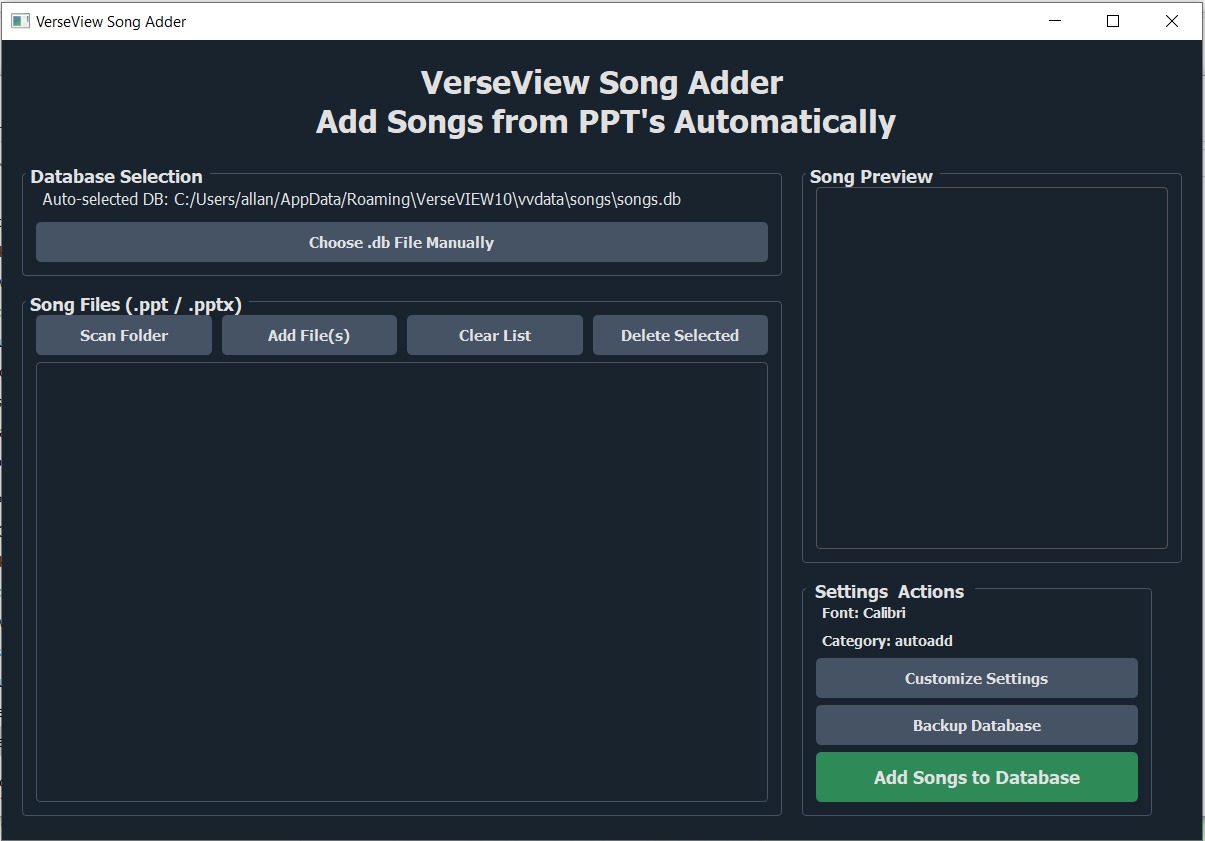
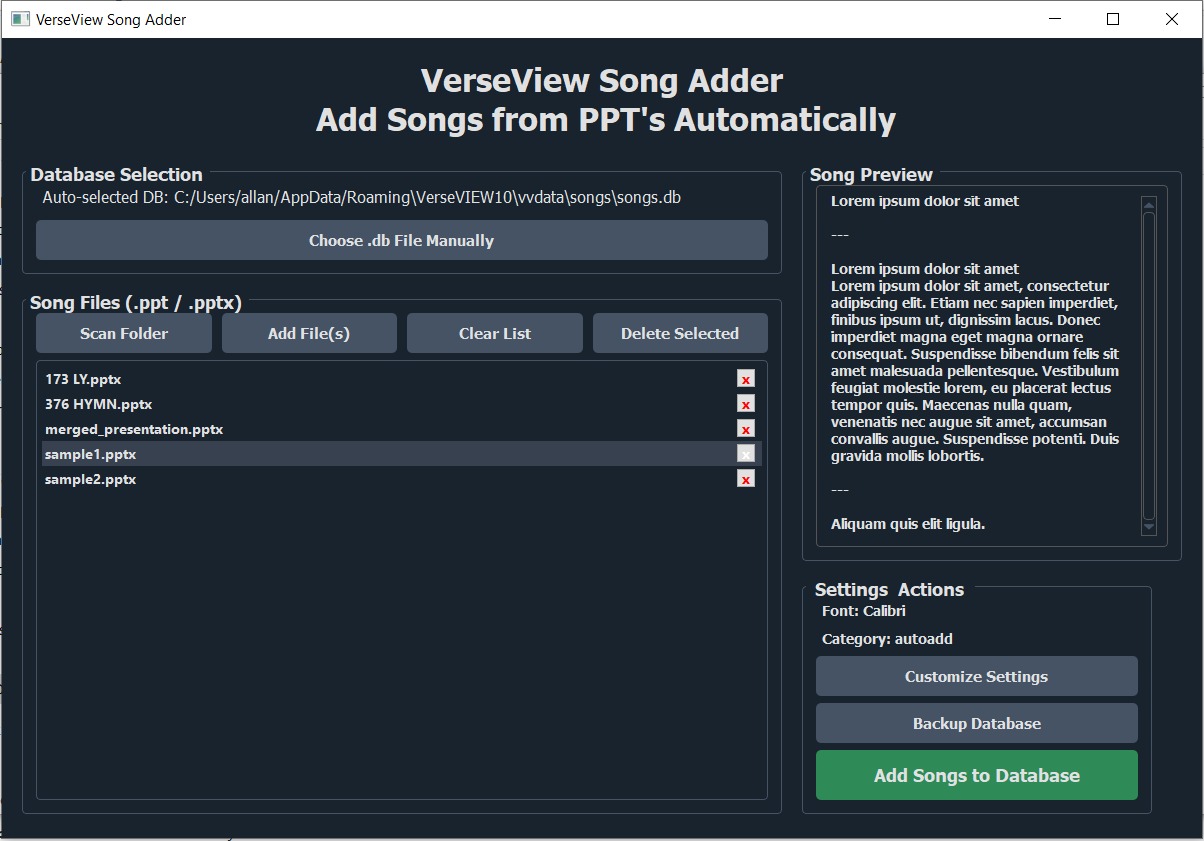
- Automated Import: Scans PowerPoint files (`.ppt` and `.pptx`) for text and formats it for the VerseView database.
- Intuitive Interface: A simple, modern GUI that supports drag-and-drop for single files or entire folders.
- Automatic Database Detection: The app attempts to automatically locate the user's `songs.db` file.
- File Management: Users can add, preview, and remove files from a list before processing.
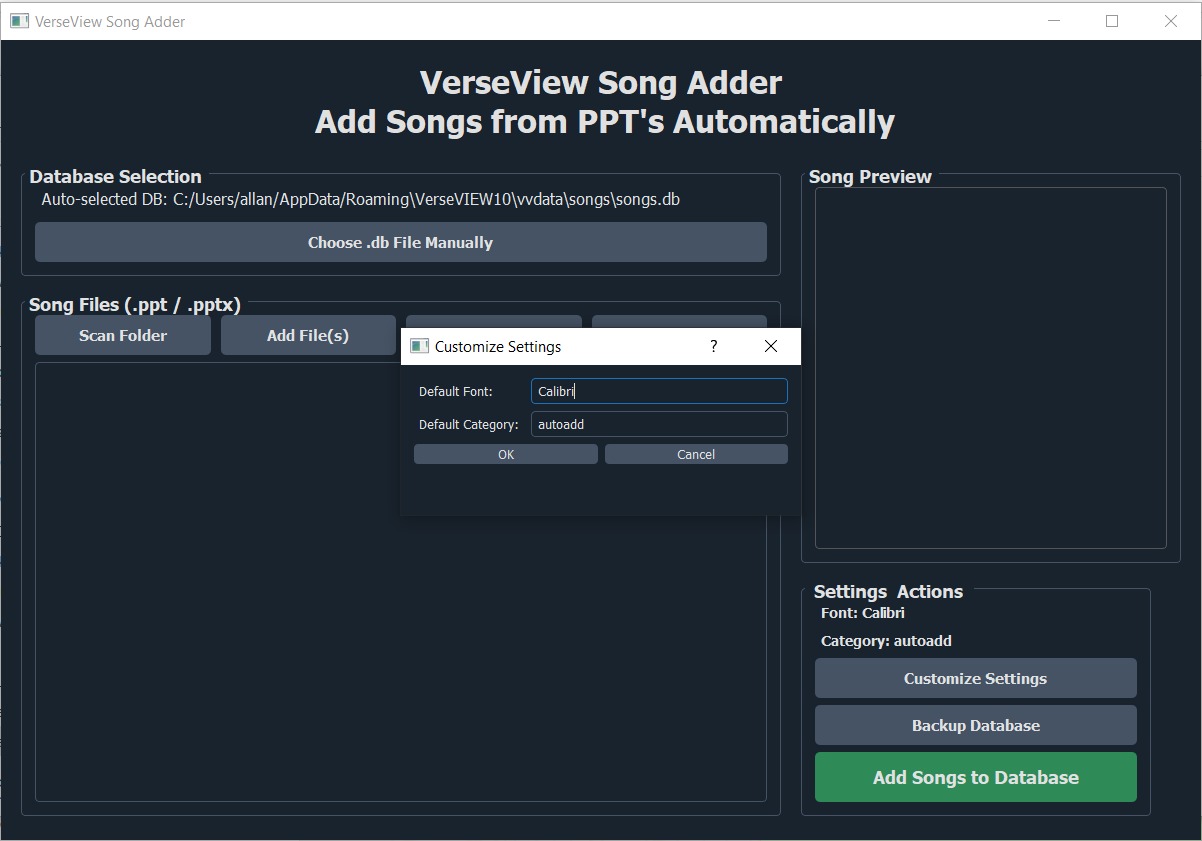
- Customizable Settings: Allows setting a default font and category for all new songs.
- Built-in Backup: A one-click feature to create a backup of the `songs.db` file before making changes.
- Progress and Summary: Displays a progress bar during the import and a final summary of successful and failed imports.
3. Technical Pipeline (For Developers)
The application is built on a robust Python pipeline, using several key libraries for its functionality:
- GUI: Built with PyQt5 and styled with qdarkstyle.
- File I/O: `python-pptx` handles modern `.pptx` files, while `win32com` is used for older `.ppt` files.
- Database: `sqlite3` is used to connect to and manipulate the `songs.db` file, specifically the `sm` (Song Master) table.
- Modularity: The code is structured with an `if __name__ == "__main__":` block, allowing core functions to be imported and reused in other projects.
4. Project Structure
/
├── main.py            # Main application logic
├── app_ico.ico
├── README.md
└── LICENSE
5. Build & Dependencies
The application is designed to be a portable executable using Nuitka. The following command packages all dependencies and resources into a single `.exe` file for Windows:
python -m nuitka
>>   --standalone
>>   --onefile
>>   --enable-plugin=pyqt5
>>   --windows-disable-console
>>   --windows-icon-from-ico=C:\projets\verseviewSonginjector\app_icon.ico
>>   --windows-company-name="allanhanan"
>>   --windows-product-name="VerseView Song Adder"
>>   --windows-product-version="1.0.0"
>>   --windows-file-version="1.0.0.0"
>>   --mingw64
>>   --follow-imports
>>   --output-dir=C:\projets\verseviewSonginjector\build `
>>   C:\projets\verseviewSonginjector\main.py
This command bundles the Python script, its dependencies (`pyqt5`, `python-pptx`, etc.), and the `resources` folder containing the icon file. This makes the final `.exe` completely self-contained and portable.
6. Download & Contribute
App Screenshots
Comments